

Share model results with a link
The results of a model often have to reach people who have no account on the platform: a customer, a supplier, a colleague in another plant. A share link shows them the scores, the confusion matrix and the evaluation images, and nothing else of the project. In this guide you create one that expires after an hour and open it as they will.
What you will learn
- How to create a share link and choose when it expires
- What the people who open it can see
- How long a link lasts
Before you start
You need a model with a finished training: links are offered only for finished models.
1. Open the share dialog
Open the results of the model. Next to its name, at the top, click the share button, «Share results».
2. Choose when it expires
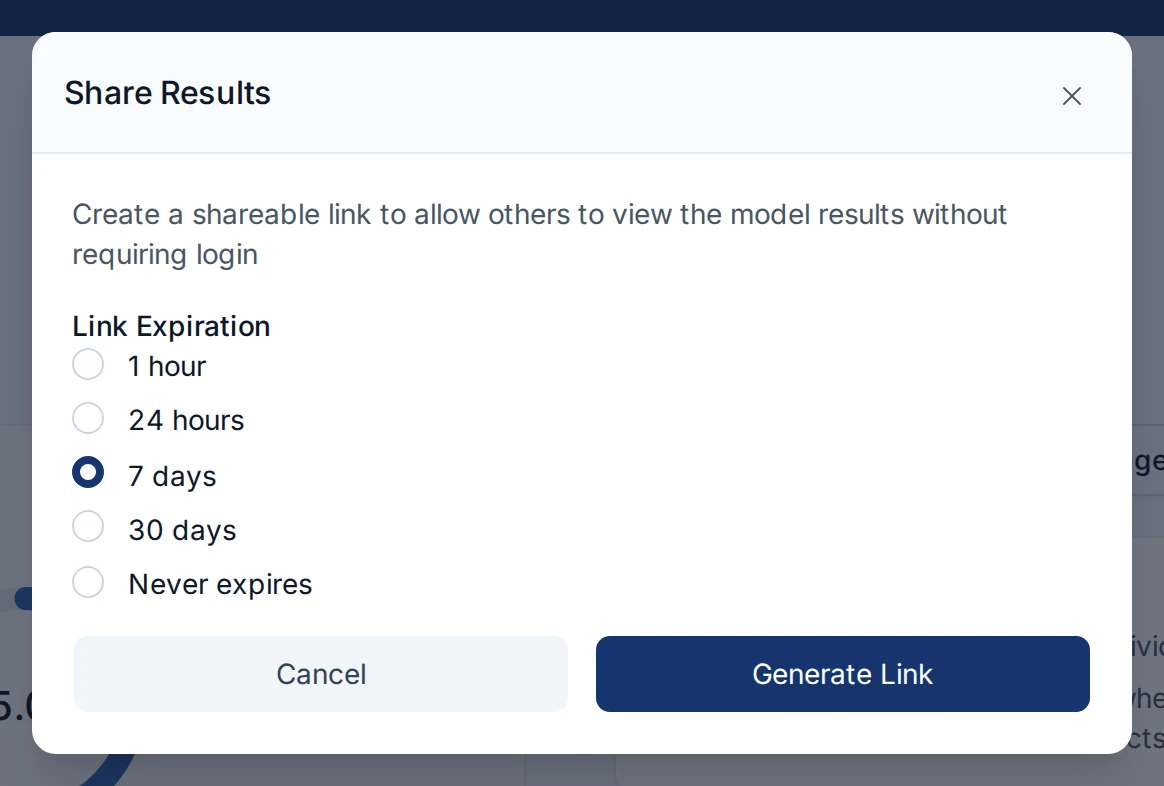
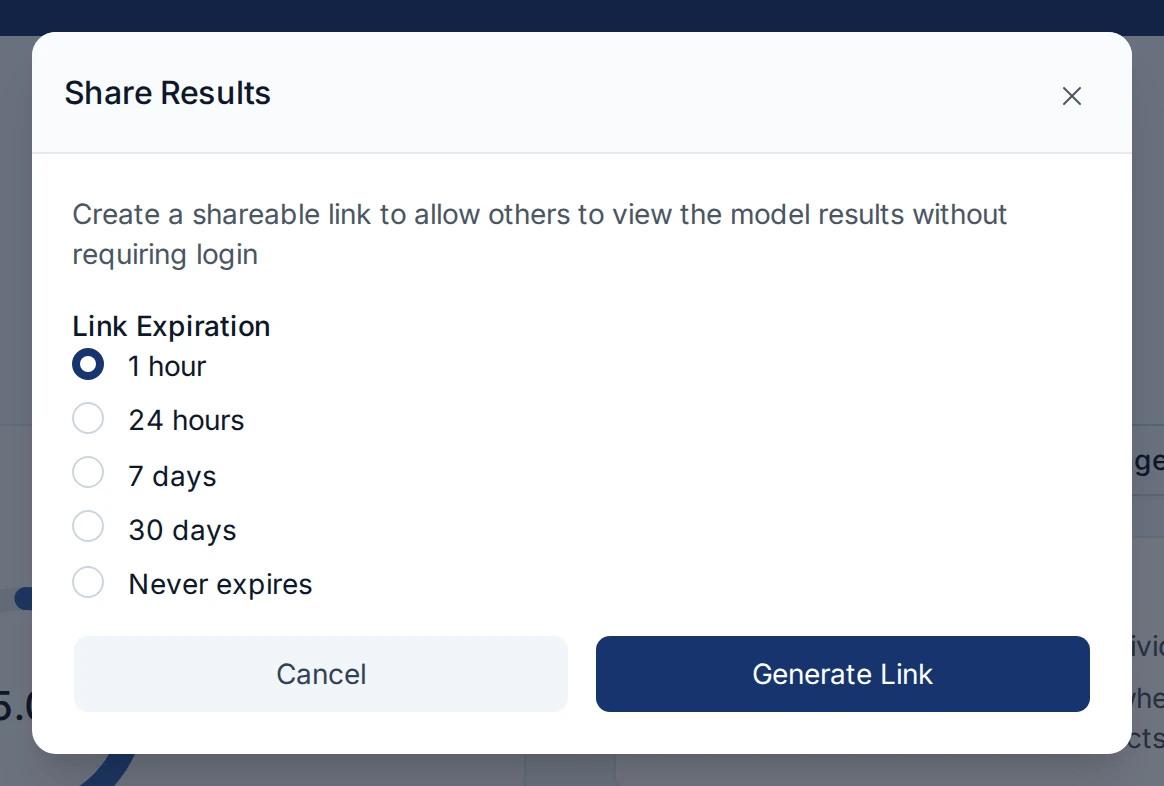
Under «Link Expiration», choose how long the link will work: «1 hour», «24 hours», «7 days» (the default), «30 days» or «Never expires». Choose the shortest that is enough: the platform has no button to withdraw a link before it expires.
3. Generate the link
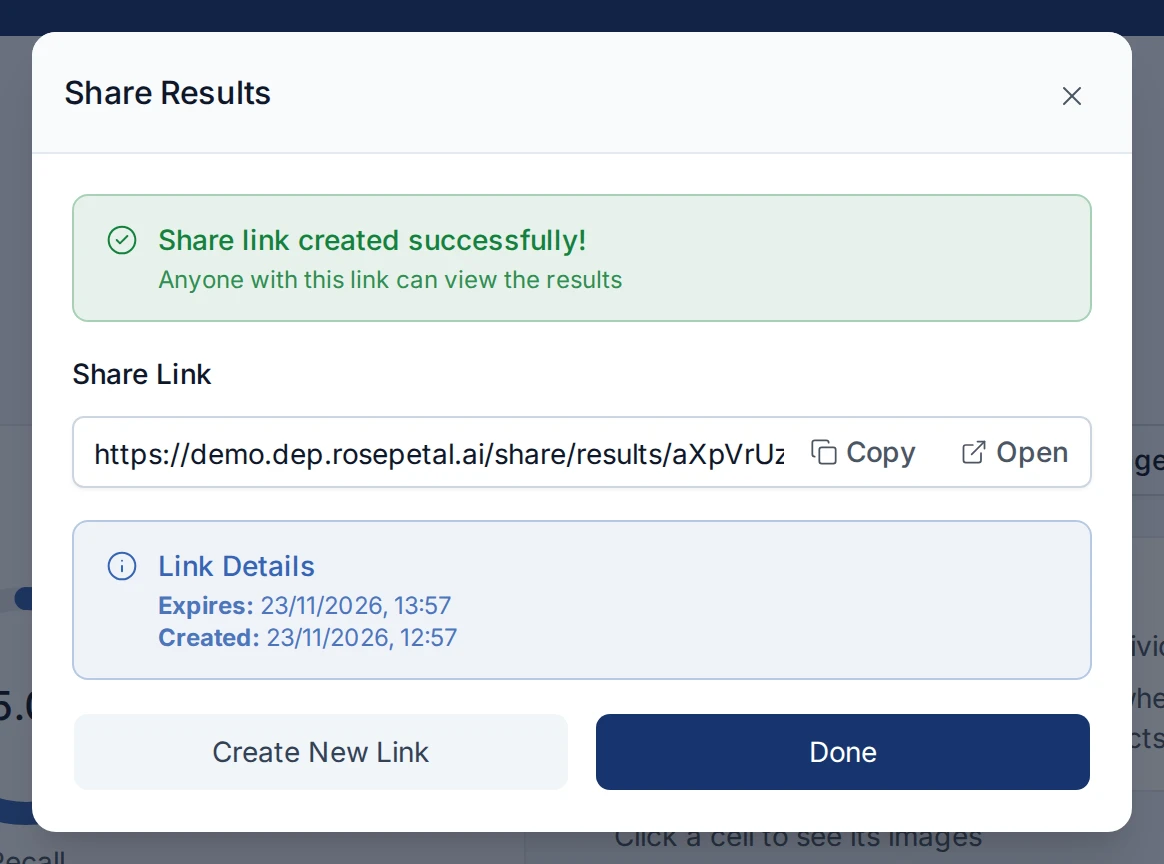
Click «Generate Link». The dialog shows the link, when it expires and when it was created.
4. Copy it
Click «Copy» and paste the link in an email or a message. Anyone who has it can open the results while it works, with no account: send it only to the people who should see them.
5. Open it
«Open», next to «Copy», opens the page the link leads to, in a new tab.
6. See what they see
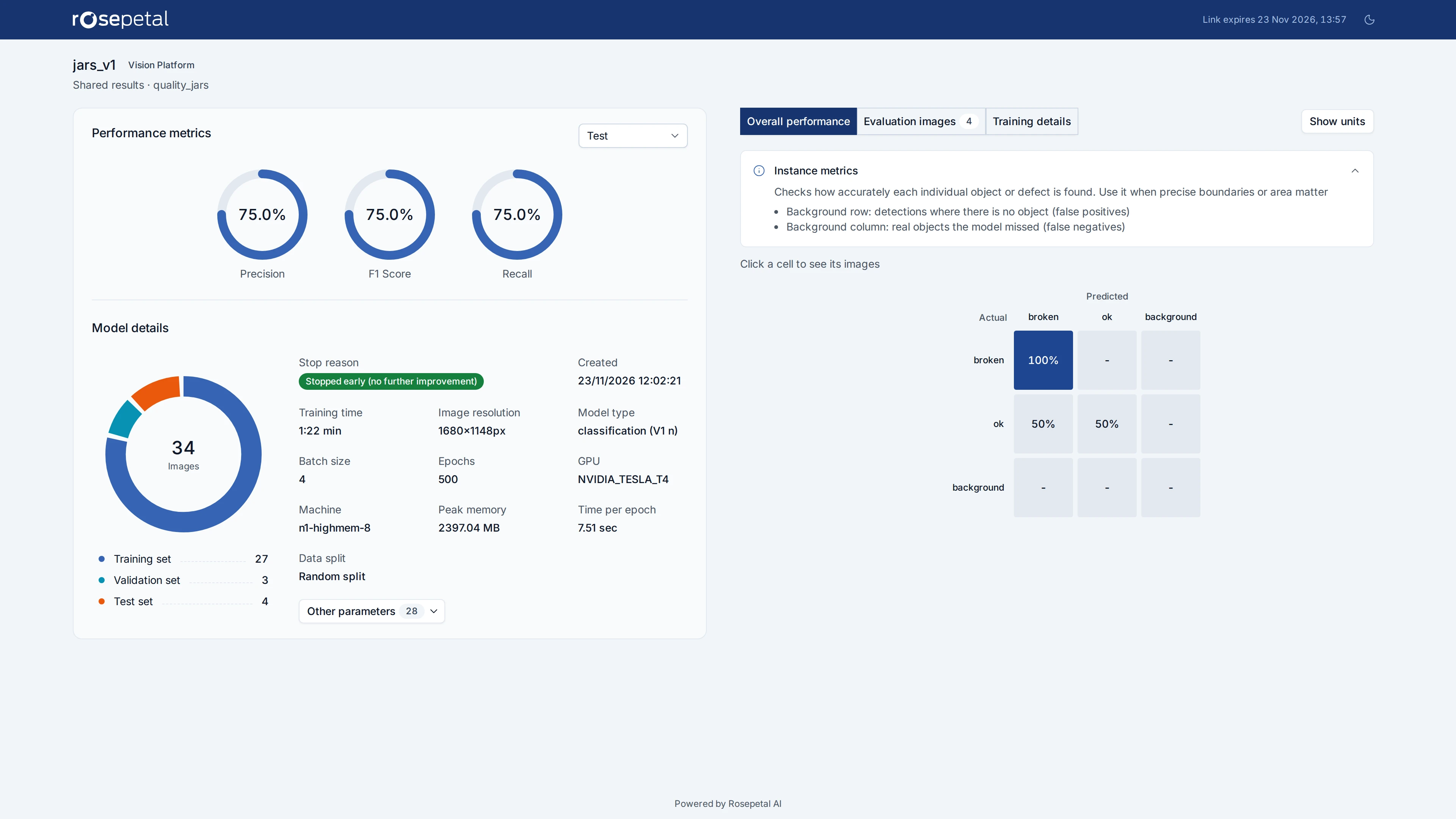
The page holds the results of this model only: its scores, its confusion matrix, its evaluation images, which can be opened one by one, and the details of its training. At the top right it says when the link expires. Nothing else of the project can be reached from it.
How long a link lasts
A link works until it expires. The platform has no button to withdraw it earlier: when a link must stop working at once, delete the model, which deletes its links too. A new link does not cancel the earlier ones; each one keeps its own expiry. Links for a model can only be created from a finished training.
Next steps
Recorded on Rosepetal release 1.8.15.